Admin User Interface
Overview
The Structr Admin User Interface is a web-based console for building and managing Structr applications. From here, you can design your data model, build pages, manage users, and monitor your running application.
Quick Reference
| I want to… | Go to |
|---|---|
| Define data types and relationships | Schema |
| Write business logic and methods | Code |
| View and edit data in the database | Data |
| Build web pages and templates | Pages |
| Manage static files (CSS, JS, images) | Files |
| Manage users, groups, and permissions | Security |
| Export or import my application | Dashboard |
| Model and monitor business processes | Processes |
| Run scripts and queries interactively | Admin Console (Ctrl+Alt+C) |
Interface Structure
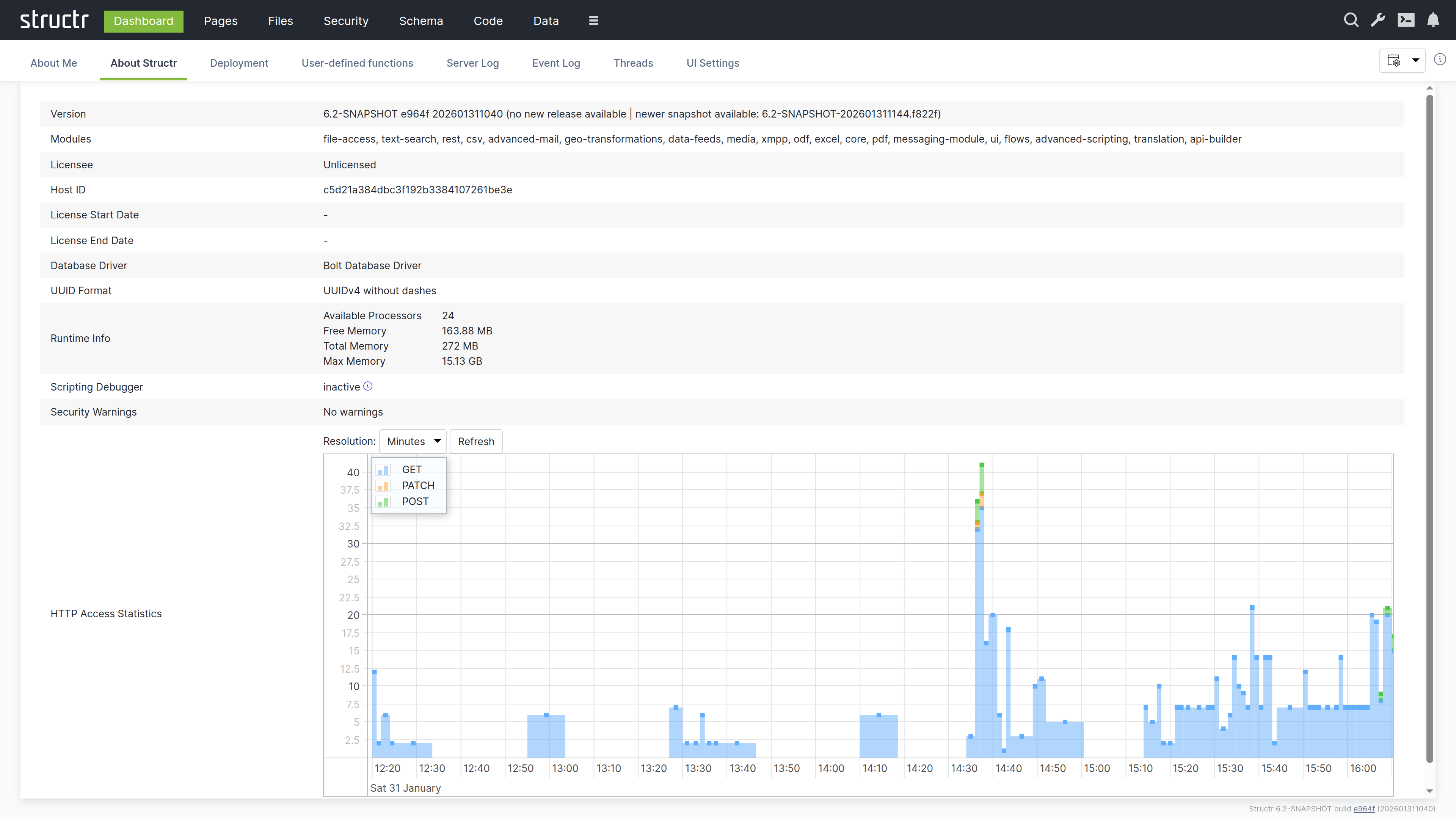
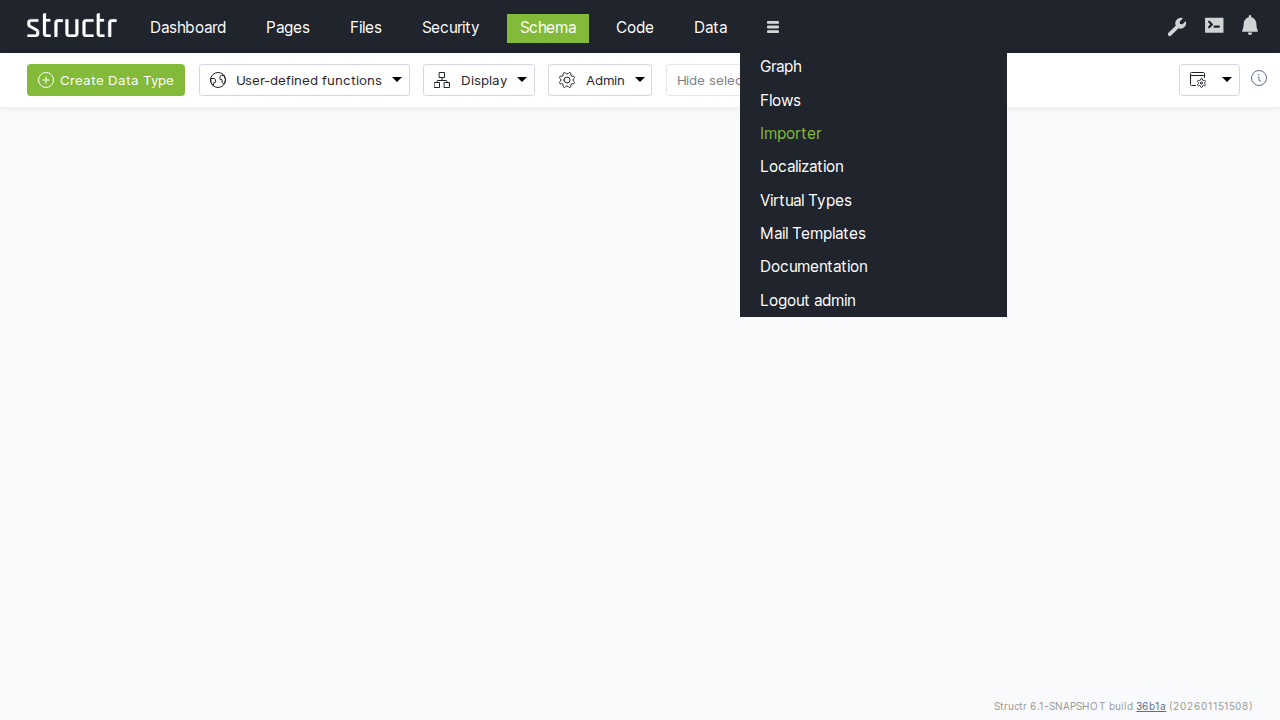
The interface is organized around a header bar that stays visible across all areas. The main navigation on the left side of the header takes you to the different functional areas: Dashboard, Pages, Files, Security, Schema, Code, Data, and more. Less frequently used items are available in the burger menu, which also contains the Documentation entry and the logout link. You can configure which items appear in the main navigation through the UI Settings on the Dashboard.
On the right side of the header, tools are available regardless of which area you are working in:
Search
The magnifying glass icon opens a global search across all your data.
Configuration
The wrench icon opens the Configuration Interface in a new browser tab. This separate interface provides access to all runtime settings that control Structr’s behavior, from database connections to scheduled tasks. It requires authentication with the superuser password defined in structr.conf, adding an extra layer of security for these sensitive operations. For details, see the Configuration Interface section below.
Documentation
The book icon opens the built-in documentation inside the Admin UI, the same content you are reading now.
Admin Console
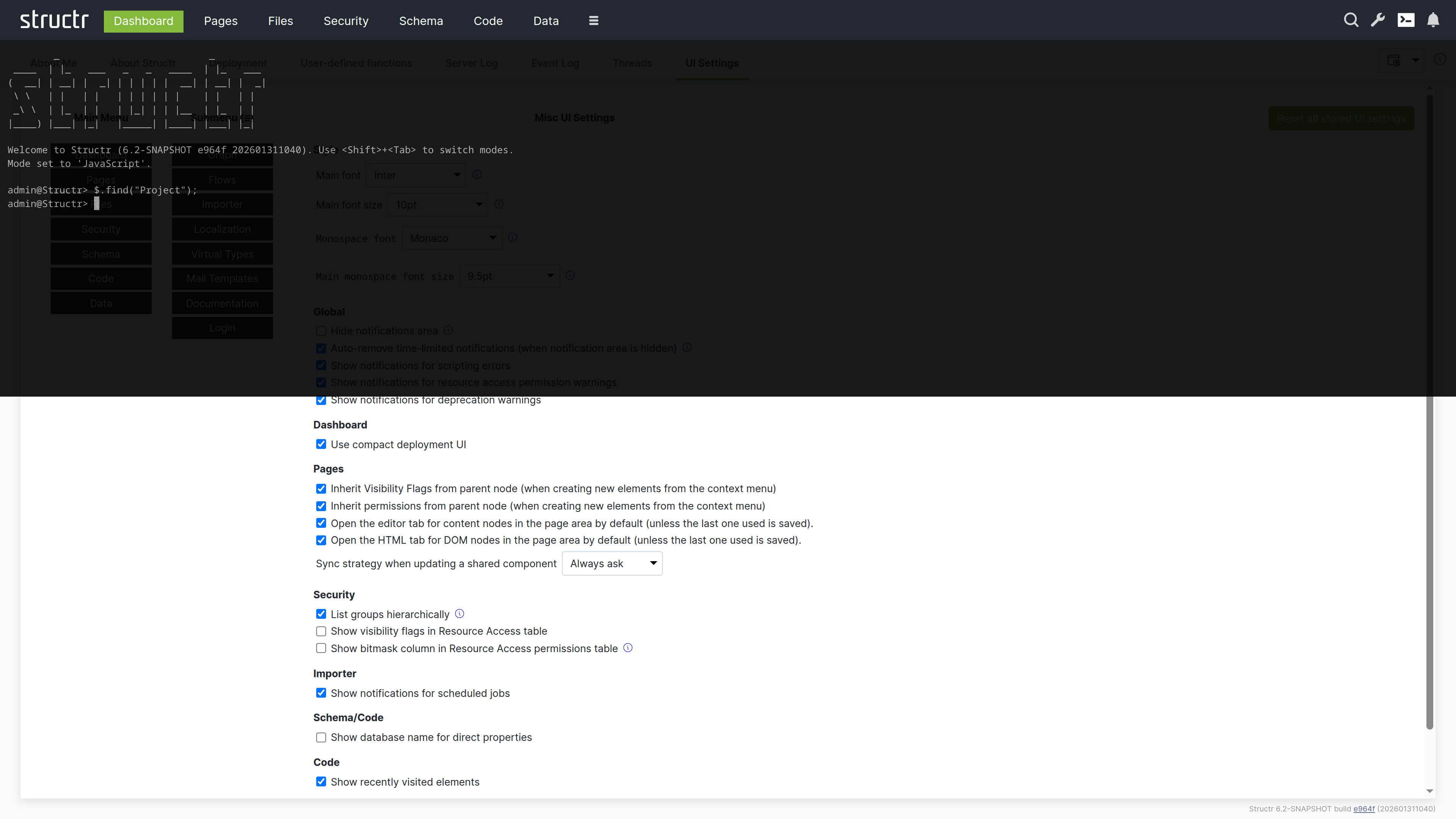
The terminal icon opens the Admin Console – a Quake-style terminal that slides down from the top of the screen. This is a powerful REPL for executing JavaScript, StructrScript, Cypher queries, and administrative commands. You can also open it with Ctrl+Alt+C.
Notifications
The bell icon shows notifications and system alerts.
The Main Areas
Dashboard
This is the default landing page after login. Here you can view system information, check server logs, and use deployment tools to export and import your application.
Pages
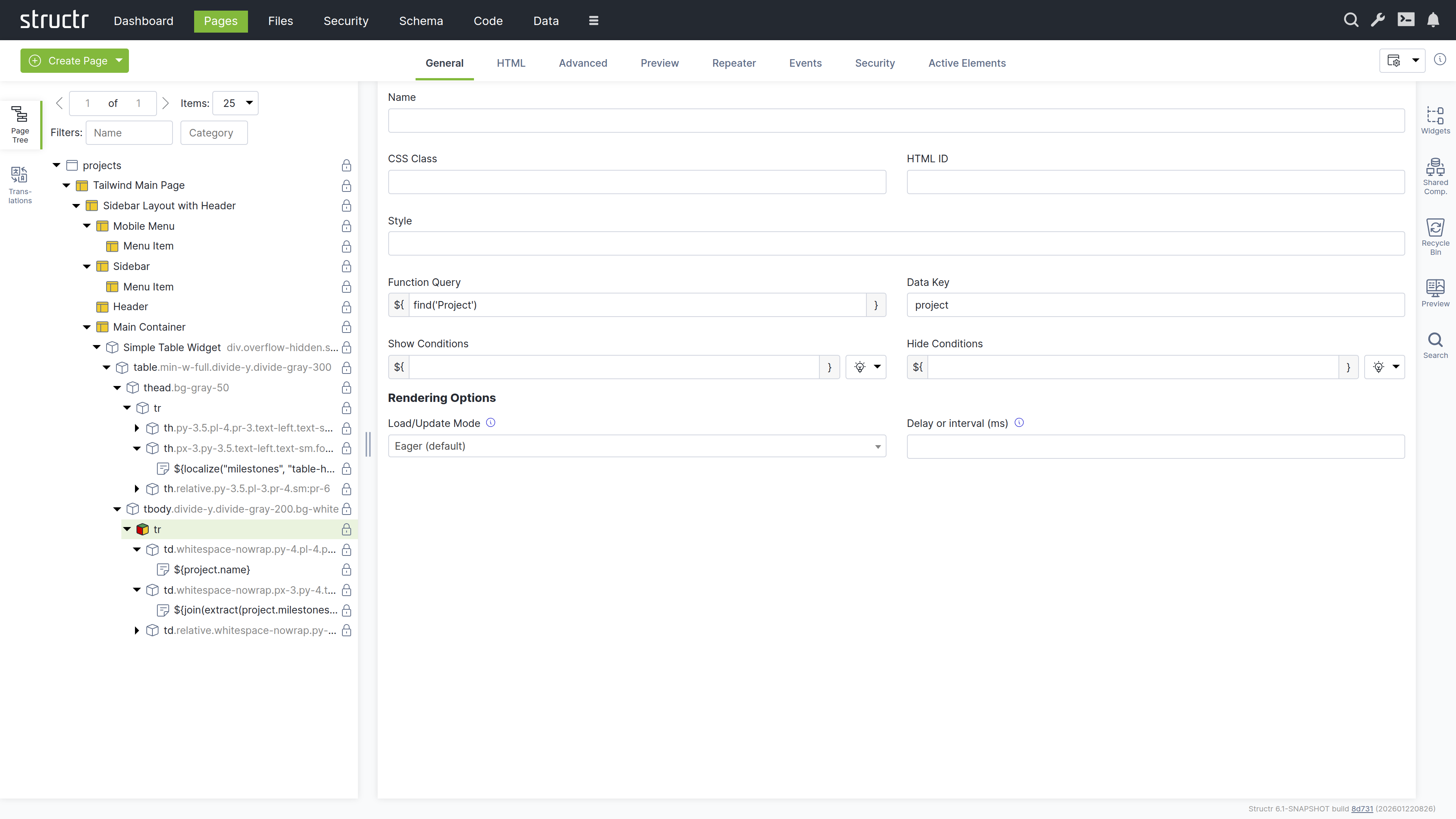
This is the visual editor for building web pages. You can use the tree view to see your page structure, drag and drop widgets, and preview your pages in real time.
Files
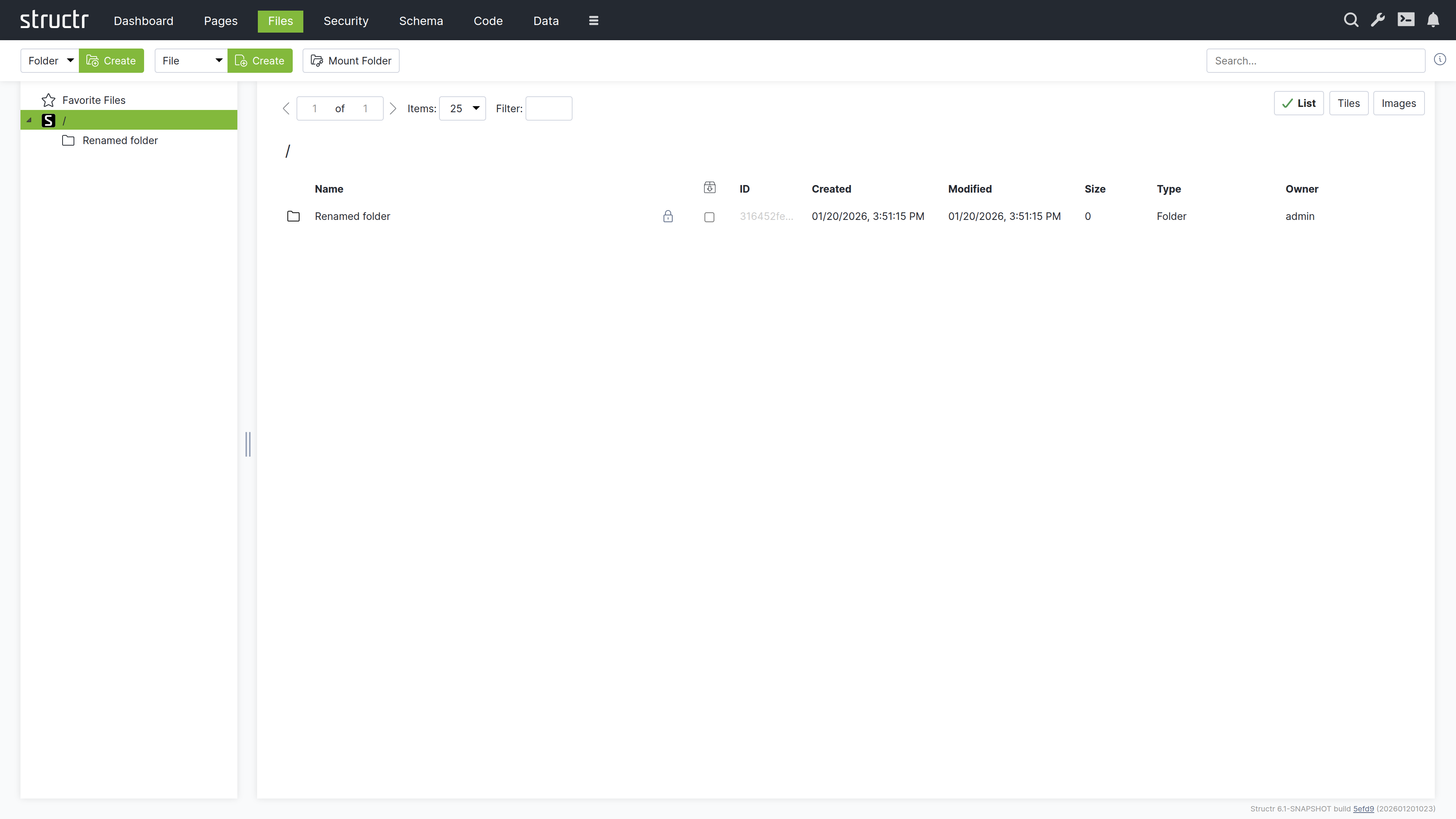
This is where you manage your static assets – CSS, JavaScript, images, and documents. You can upload files, organize them in folders, and reference them in your pages.
Security
Here you can manage users and groups, configure resource access grants, and set up CORS.
Schema
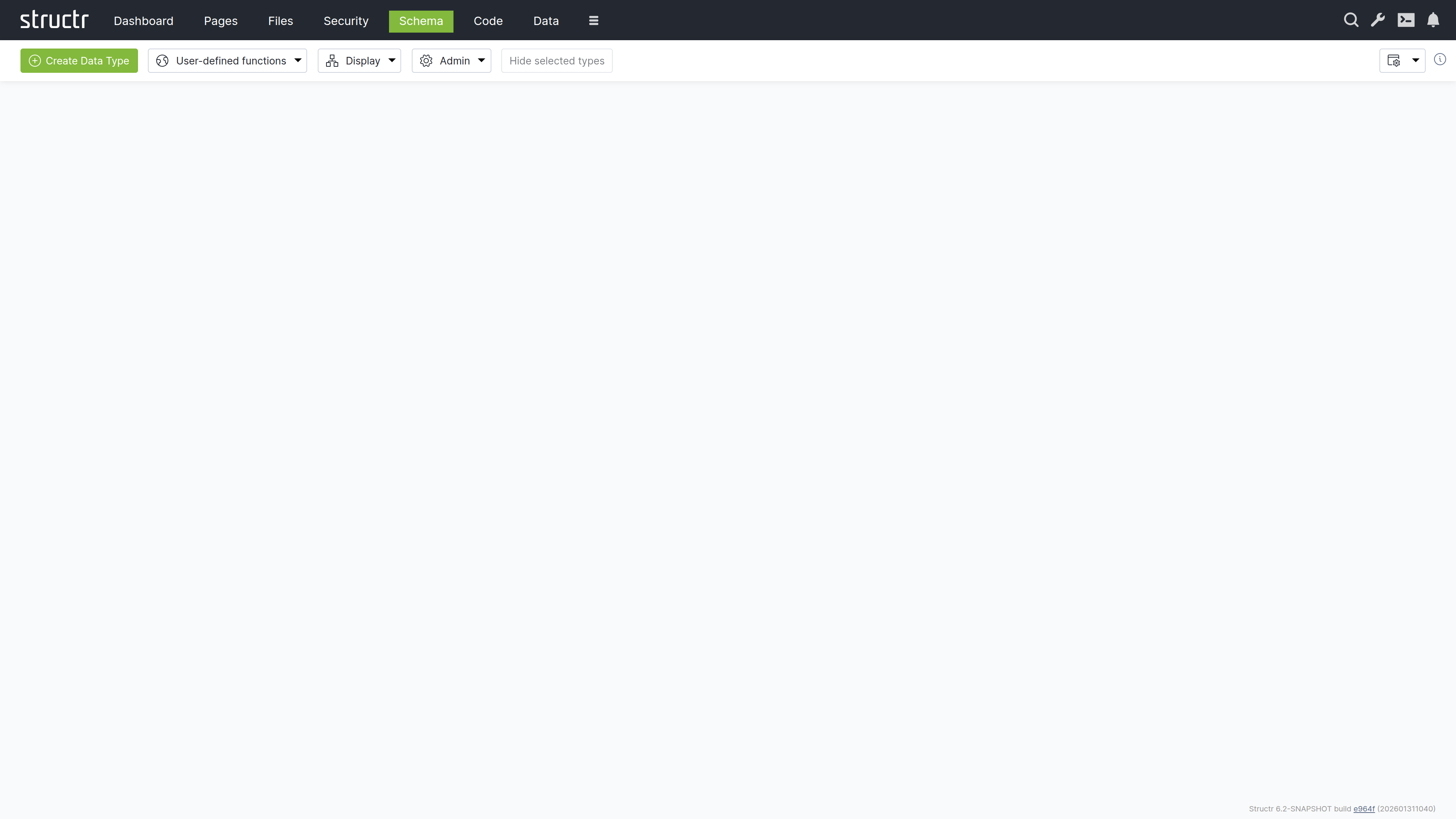
This is the visual data modeler. Types appear as boxes, relationships as connecting lines. You can drag them to arrange the layout and click to edit their properties.
Code
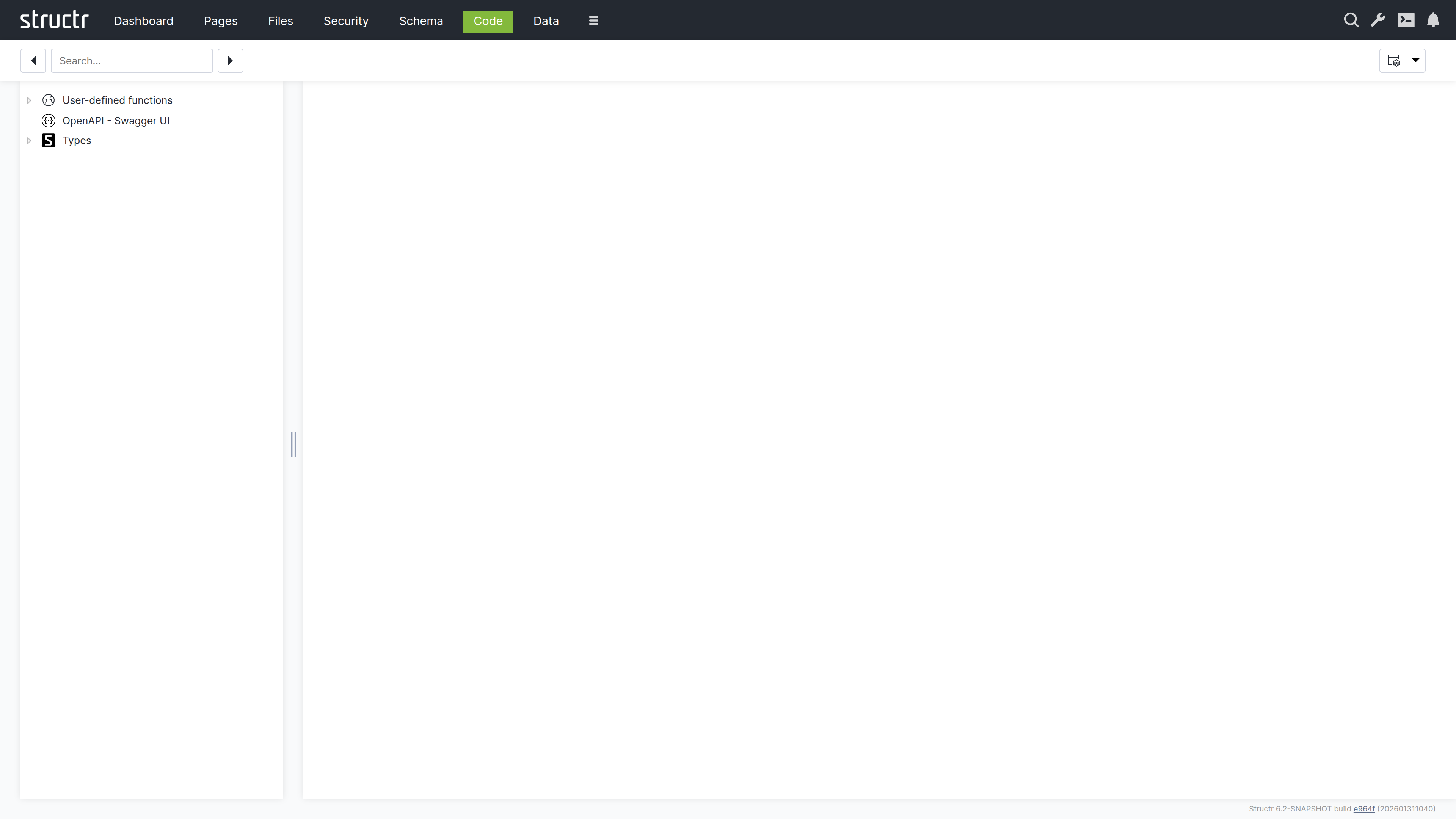
Here you can write and organize your business logic. The same types as in the Schema area are displayed, but organized for writing and editing methods rather than visualizing relationships.
Data
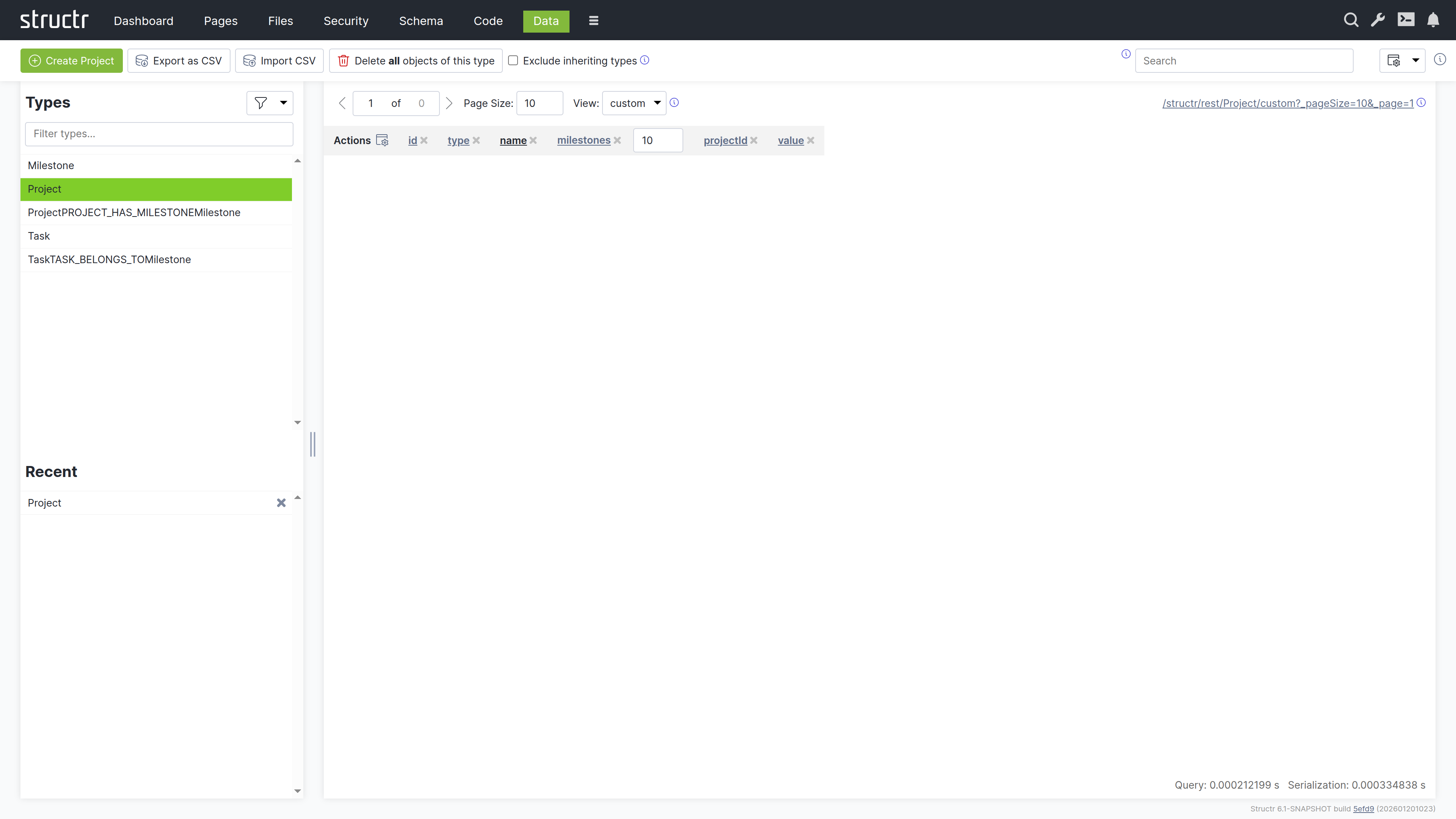
Here you can browse and edit the objects in your database. Select a type, view all instances in a table, and edit values directly.
Flows
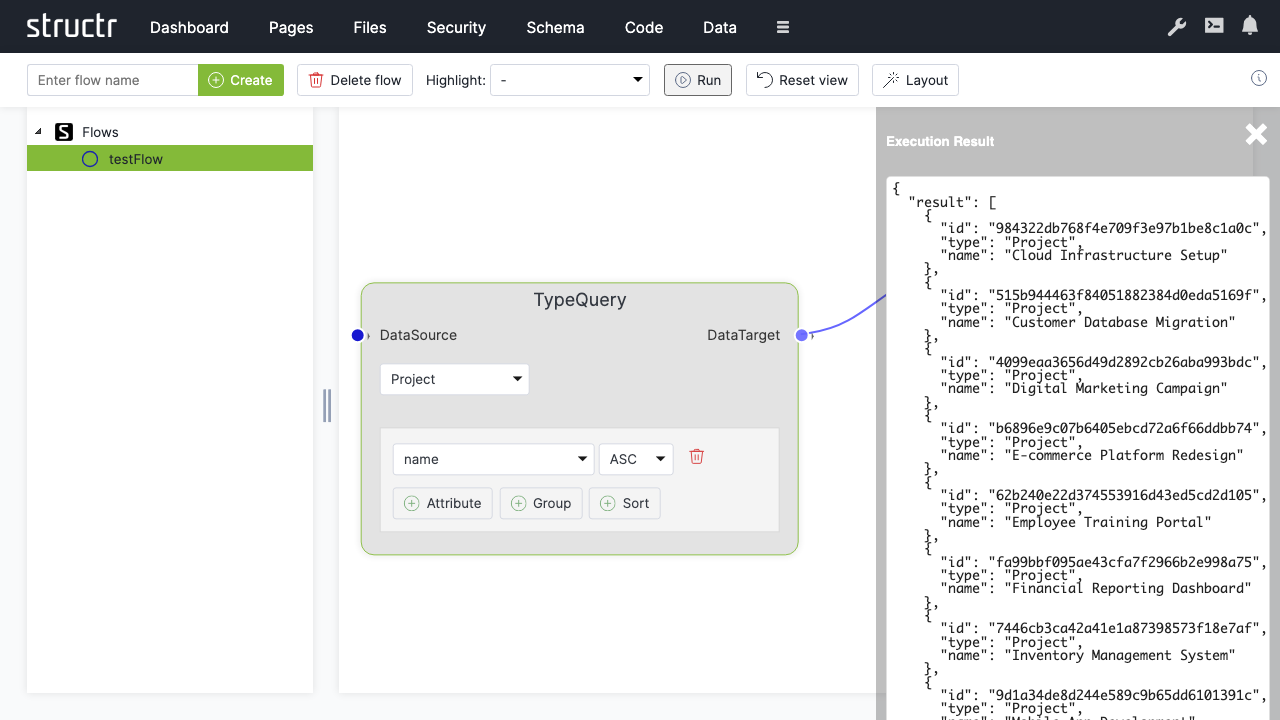
This is a visual workflow designer where you can create automated processes and data transformations.
Processes
This area holds the BPMN editor for modelling business processes and the monitoring views for running process instances, their tokens and the tasks that wait for users. It requires the process module and is hidden in the burger menu by default.
Job Queue
This area shows scheduled jobs and background tasks. Jobs created with $.schedule() appear here and can be monitored or cancelled.
Localization
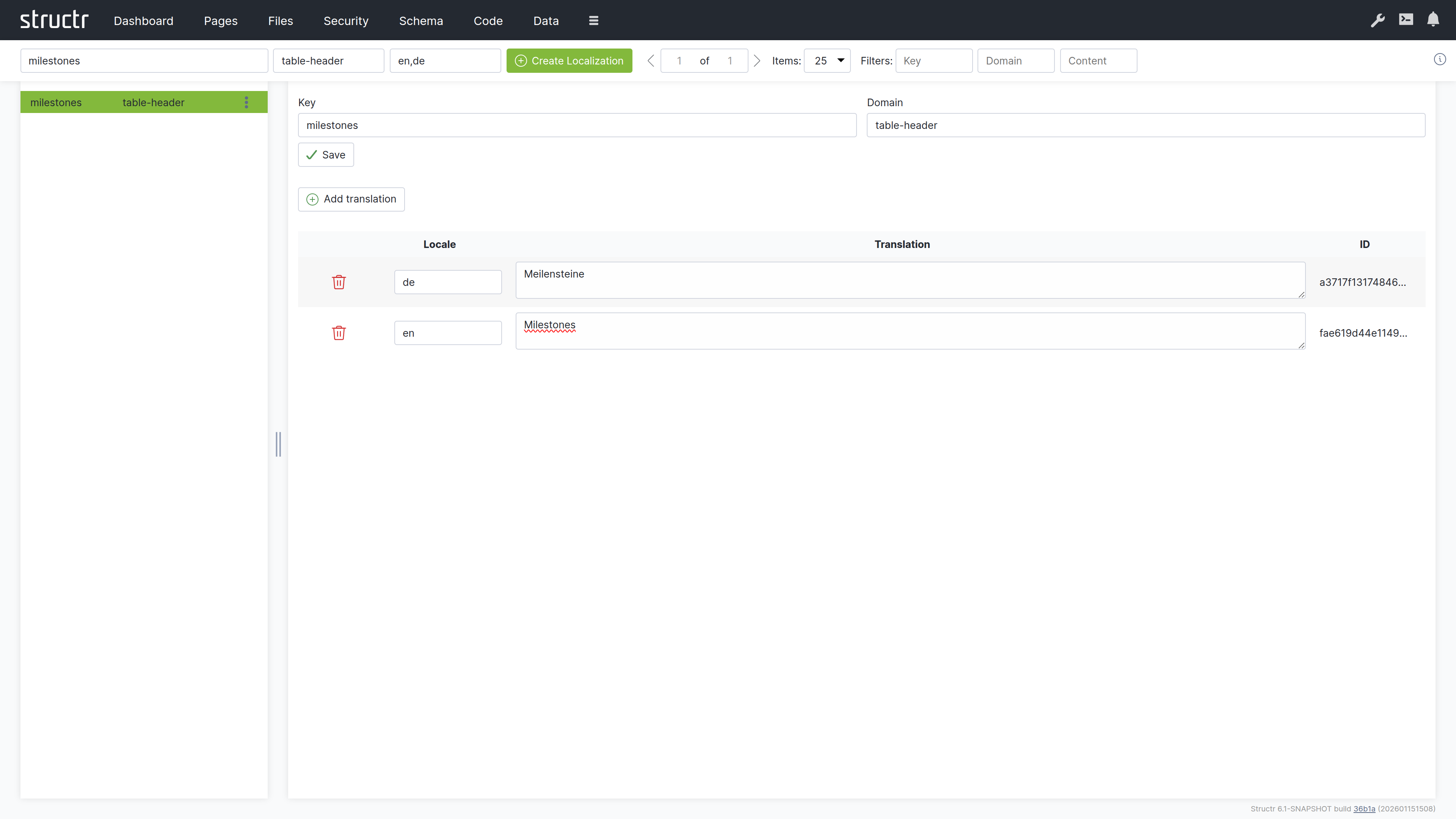
Here you can manage translations for multi-language applications.
Graph
This is an interactive graph explorer where you can visualize your data objects and their relationships.
Mail Templates
Here you can create and edit email templates used in automated notifications.
Keyboard Shortcuts
A few shortcuts work in every area of the Admin UI. On macOS, Ctrl+S is Cmd+S.
| Shortcut | Action |
|---|---|
| Ctrl+Alt+C | Toggle the Admin Console |
| Ctrl+Alt+F | Show the favorites |
| Ctrl+Alt+P | Open the properties dialog for an object by UUID |
| Ctrl+Alt+O | Jump to a DOM element in the page tree by UUID |
| Ctrl+Alt+M | Open the editor for a content element or file by UUID |
| Ctrl+Alt+E | Open the Bulk Editing Helper |
| Ctrl+S | Save the currently open dialog |
Browser Compatibility
The Admin UI is supported in Chrome, Firefox, Safari, and Edge. For the best experience, keep your browser updated to the latest version.